
2 min read
382 words
1 view
If the sound on your
laptop is low, you can adjust software settings like the volume mixer and audio enhancements, update audio drivers, or use external speakers for a better experience. The laptop features 1.5W stereo speakers with Dolby Audio, which might have limited volume capabilities.
Software Solutions
- Check all Volume Controls: Ensure the master volume and individual application volumes in the Volume Mixer are set to maximum and not muted.
- Disable Audio Enhancements: Audio enhancements can sometimes cause low volume issues.
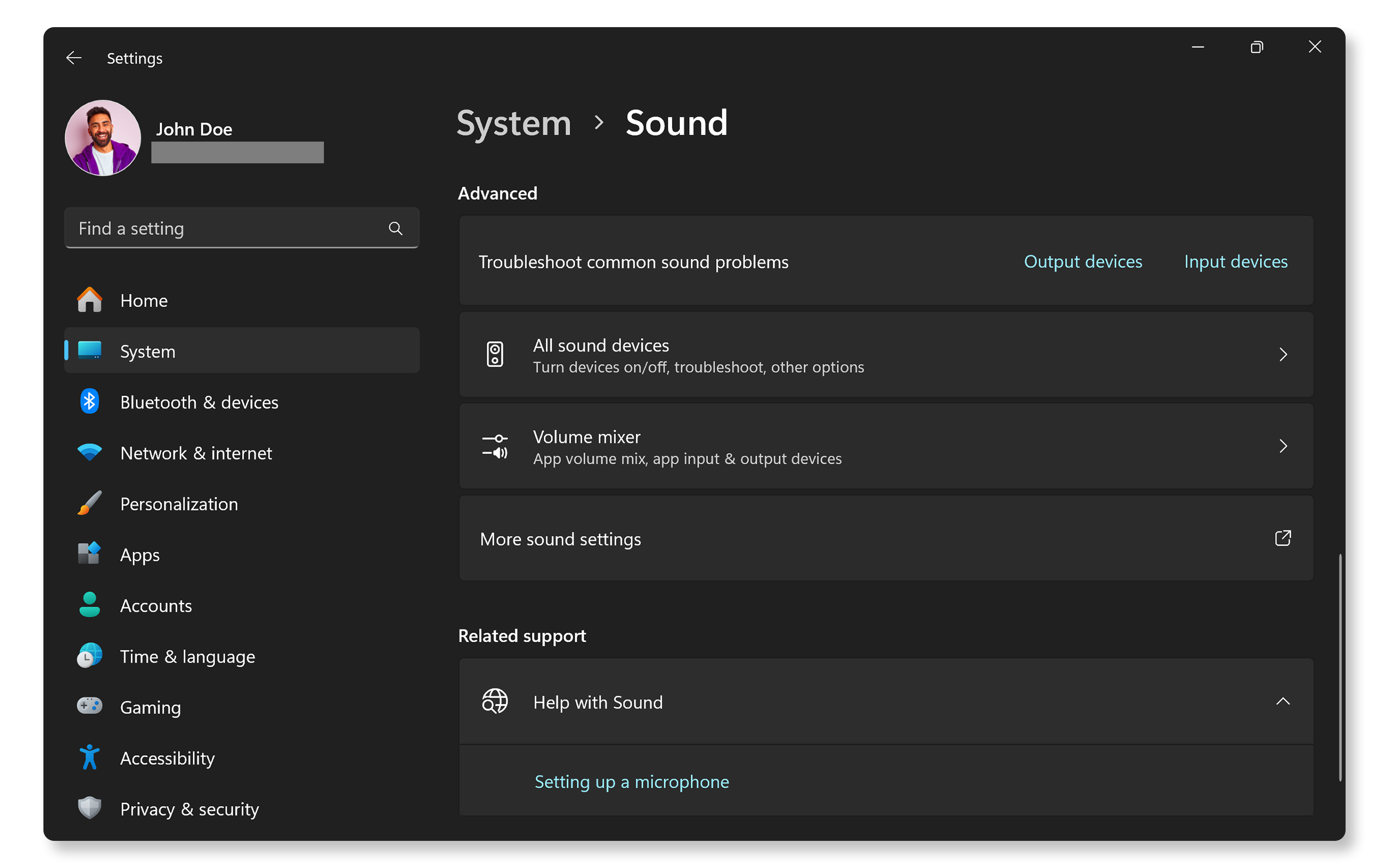
- Go to Settings > System > Sound.
- Select your output device (Speakers).
- Scroll down to Advanced settings and set Audio enhancements to Off.
- Run the Audio Troubleshooter: Windows has a built-in tool that can automatically detect and fix common audio problems.
- Go to Settings > System > Troubleshoot > Other troubleshooters.
- Select Run next to Playing Audio and follow the on-screen instructions.
- Adjust Default Sound Format: Changing the default sound format might help.
- Right-click the sound icon in the taskbar and select Sound settings.
- Select Device properties, then go to the Advanced tab.
- Under Default Format, try changing the sample rate and bit depth (e.g., to 24 bit, 44100 Hz or 24 bit, 192000 Hz) and click Apply.
Driver and System Maintenance
- Update Audio Drivers: Outdated or corrupted drivers are a common cause of sound problems.
- Use the Lenovo support website to automatically scan for and install the latest drivers.
- Alternatively, open Device Manager, expand Sound, video and game controllers, right-click your audio device (likely Realtek(r) Audio), and select Update driver > Search automatically for drivers.
- Restart Audio Services:
- In the Windows search bar, type
services.mscand open it. - Find Windows Audio and Windows Audio Endpoint Builder, right-click on each, and select Restart.
- In the Windows search bar, type
- Ensure Windows is Updated: Keeping your operating system up to date can resolve underlying compatibility issues.
Hardware Solutions
- Use External Speakers or Headphones: The built-in 1.5W speakers on the Lenovo V14 G4 IRU are entry-level and may be physically limited in volume output. For a significantly louder and better experience, connecting external powered speakers or headphones is often the best solution.
- Check for Physical Obstructions: Ensure the speaker grilles are clean and not blocked.
These troubleshooting guides offer solutions for low volume issues by detailing software adjustments, driver updates, and hardware considerations